Installing QPI
QPI ships as a standard Windows installer. There is nothing to configure, no runtime to install first, and no service to register. Run the installer, launch the app, and you are reading plans.
What you need
- Windows 10 or Windows 11, 64-bit.
- About 400 MB of free disk space.
- A SQL Server execution plan to look at (a
.sqlplanor Showplan XML file). You do not need a database connection to get value out of QPI. The live-connection features are optional and covered in Connecting to a live server.
QPI bundles its own runtime, so you do not need Node.js, .NET, or anything else installed beforehand.
Get the installer
Download the installer file. It is named like:
QPI Setup 0.1.1.exe
The version number will change as new builds are released. Always grab the newest one.
Run the installer
Right-click QPI Setup 0.1.11.exe. and choose Run as Administrator.
This is an early-access build and it is not yet code-signed, so Windows SmartScreen will most likely stop you with a blue dialog that says “Windows protected your PC”. This is expected for any new unsigned application and does not mean anything is wrong with the download.
To continue:
- Click More info on the SmartScreen dialog.
- Click Run anyway.
The installer then opens. You can accept the default install location or choose your own, and decide whether to create desktop and Start Menu shortcuts.
Click through to finish. The whole thing takes a around a minute.
First launch
Open QPI from the Start Menu or the desktop shortcut, you may need to “Run as Administrator” on some machines. The first time it starts, the window opens on the drop zone, ready for a plan.
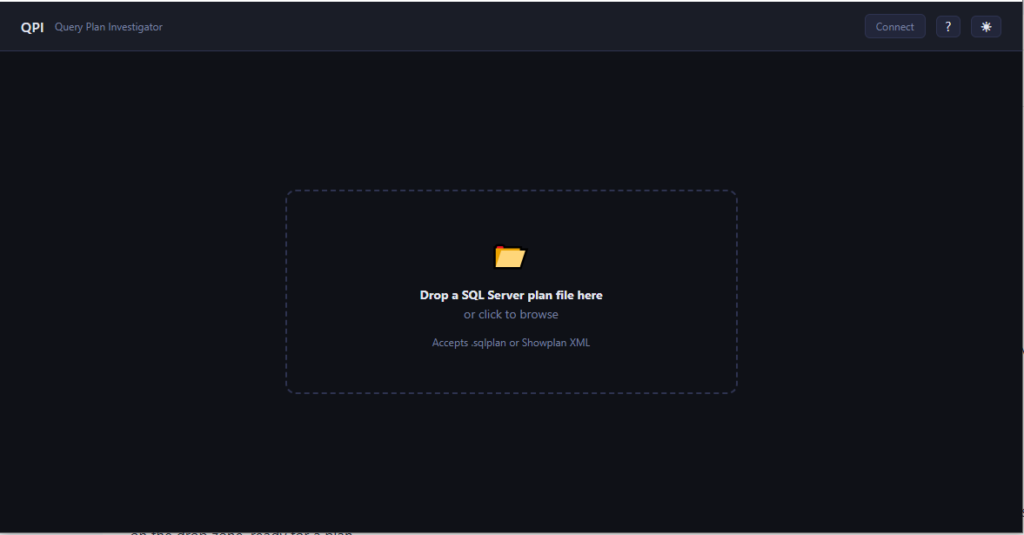
The QPI window on first launch, showing the empty “Drop a SQL Server plan file here” drop zone in the centre.
QPI starts a small local web service on your own machine to do its work. It listens on the loopback address (127.0.0.1) only, which means it is never reachable from the network. Nothing about your plans or your servers leaves the machine, unless you want it to.
You are ready to go. Head to Your first plan in a minute.
Updating
To move to a newer build, download the new installer and run it the same way. It installs over the existing version. Your settings stay where they are.
Uninstalling
QPI uninstalls like any Windows application: Settings > Apps > Installed apps, find QPI, and choose Uninstall. Or use the uninstaller in the QPI Start Menu folder.